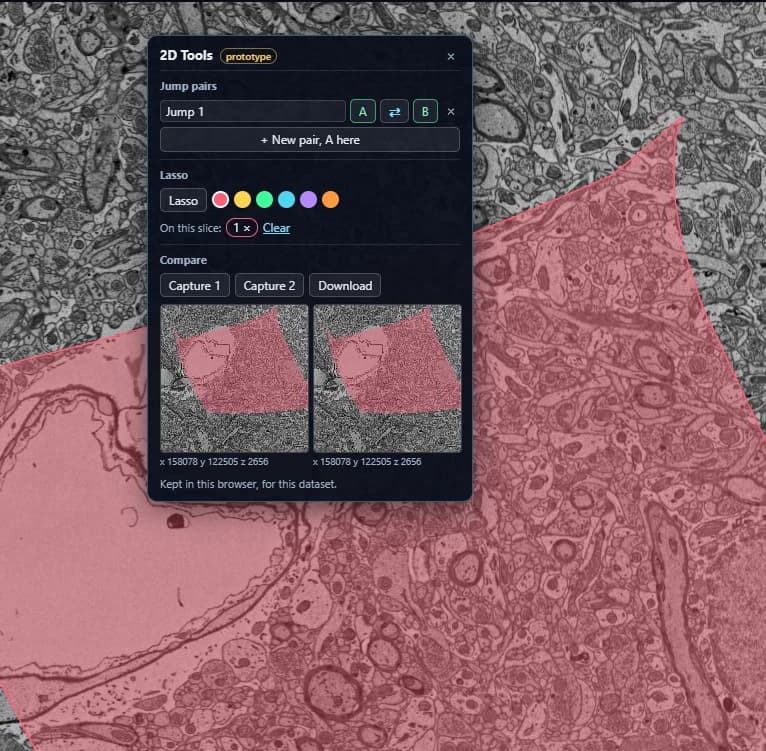
I have created a new EW2/pyr userscript, which does the following based on a convo in EW 2 misc talk - #68 by KrzysztofKruk with the original idea being @KrzysztofKruk 's and additional ideas/thoughts from me and @annkri :
It creates and places a button under the 2D only button in the 2D that has the following three (3) functions.
- A coordinates set(s) save and jump system.
you go to the slice you want and you click the “+save pre jump here” button,
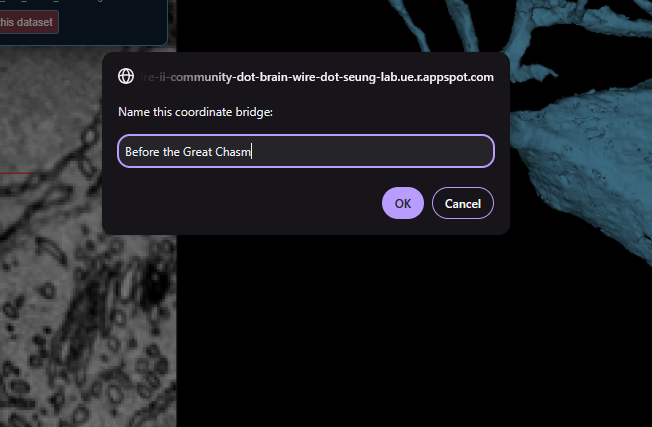
name it whatever you want and click ok. You’ll have a second popup to click ok from. DO NOT click the don’t show me any further popups.
Then go to the post jump slide and click ‘set post here’.
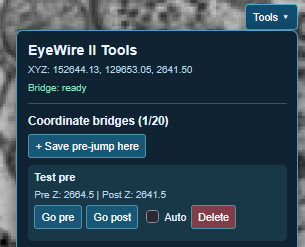
You can choose whether to select ‘auto’ or not, without auto enabled/clicked you’ll have to manually click the go pre/post buttons every time. With the auto enabled/clicked it’ll do so on it’s on. It is somewhat…finecky/sensitive to scrolling, so if you want it to do the jump automatically you have to be careful when you reach the slide you have set as pre scroll very slowly to the right next slide and wait half a second then it’ll jump on its own, (pre or post) if you scroll through it very fast it won’t engage the required jumping mechanism.
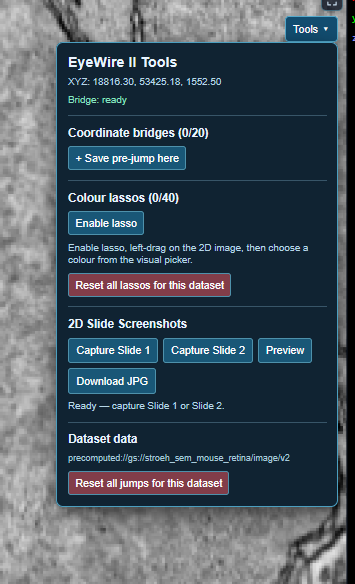
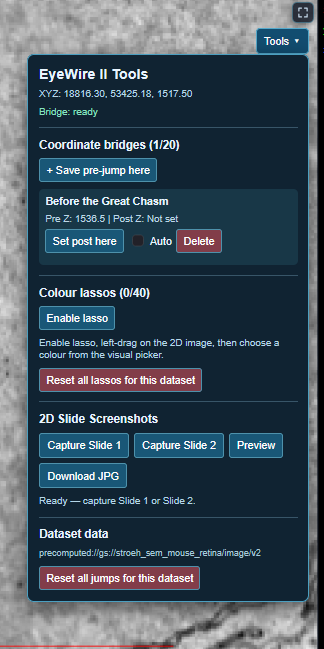
My suggestion is if you do decide to go with auto don’t set the pre and/or post jump slides/ coordinates on the slide(s) you are going to be adding lasso overlays on (that’s 2 below), set them 1 slide below/above (pre/post) so that you have a buffer zone and you dont endanger pausing scroll to set/view overlays only for the script to auto jump you to pre/post.
You can store up to 20 pre/post coordinate pairs per dataset.
- a lasso selection tool that allows you to create shapes on a slice (any slice) on the 2D and when you stop ‘drawing’ out the lasso outline it shows you a colour picker pop up, you select the colour you want and click ok, That new coloured in shape (at 40% opacity so that it doesn’t hide the 2D beneath) will auto-correct its size and/or position if you pan and/or zoom in/out and will vanish if you scroll away from that particular slice.
Imgur: The magic of the Internet
So how to work this:
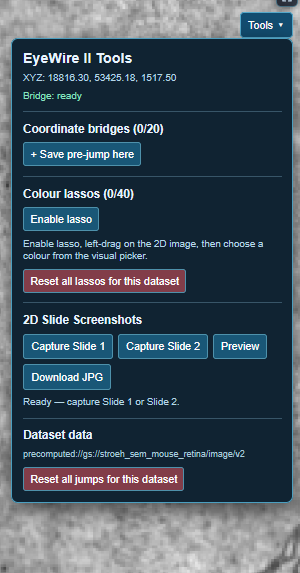
click 'Enable lasso" and draw out the outline on the 2D structure you wish to create a coloured overlay on.
Then click the colour you want (you can also click the right of the two coloured rectangulars for a custom colour picker, then click the left of the two white buttons (I forgot to tell chatgpt to change them to ok/cancel and now I’m too frustrated with it to go and ask it to change them haha) like in the video above.
You can store up to 40 coloured overlays per dataset. In theory 20 pre and 20 post should be enough to determine a correct extension past a misalignment.
- You can download a screenshot of two different (or even one) 2D screenshot. And if you have any coloured overlays on it’ll include them as well.
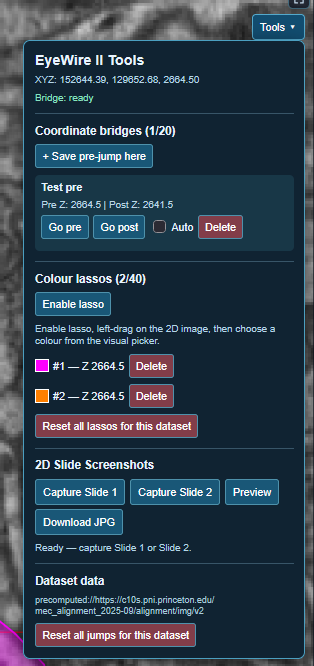
Click ‘capture Sldie 1’ on the 2D slide you want.
Then go to the second slide (ie: post jump) you want to capture and click “capture Slide 2” then click Preview.
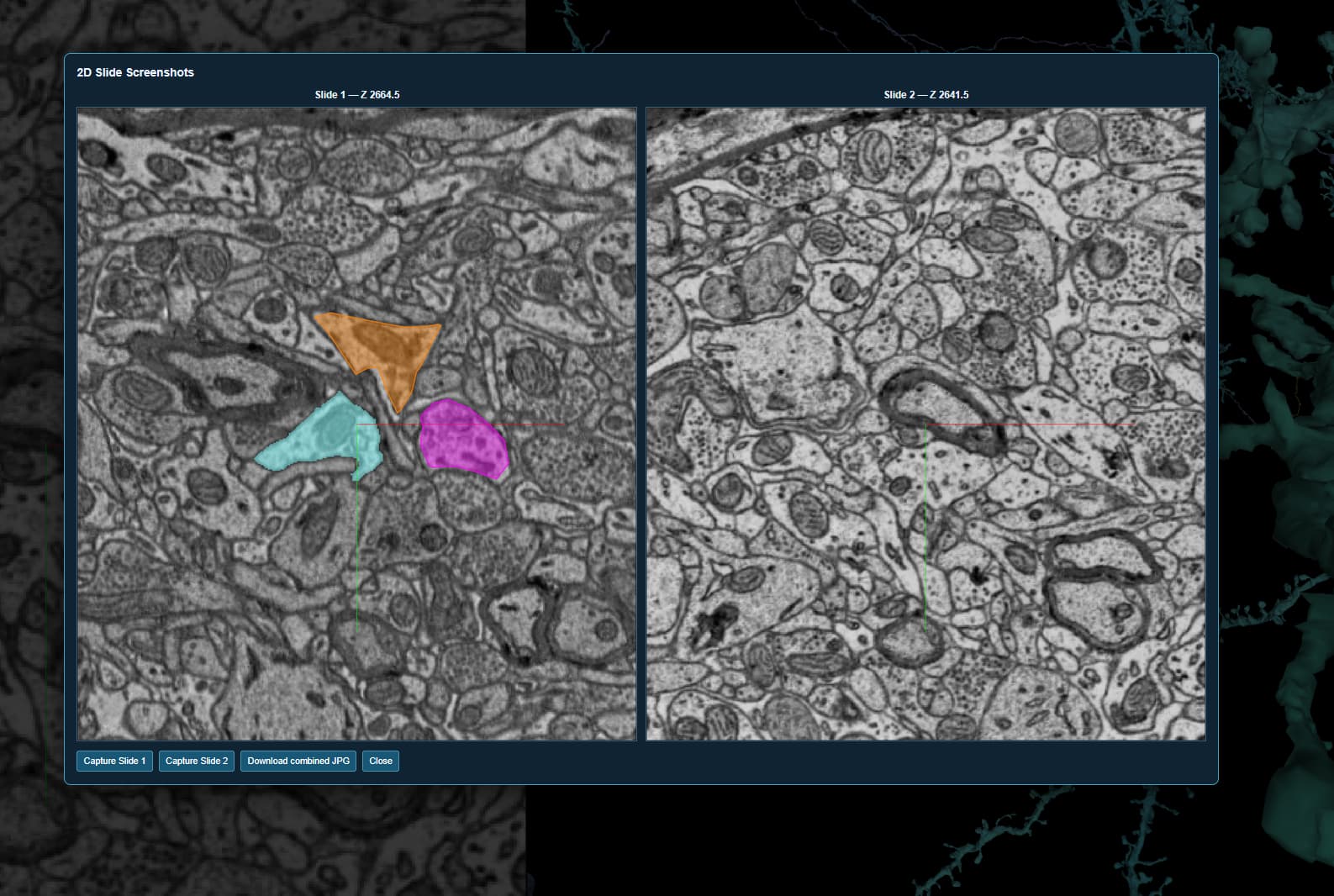
And you can then click 'Download Combined Jpg" if you want and it’ll download the two slides with the overlayed coloured shapes onto your PC.


Another tool to aid with those pesky misalignments.
To install the script you’ll need tampermonkey.
Then create a new userscript and copy paste the script from in here:
Overwriting any sample code.
Refresh ew2/pyr and enjoy!